

 Business Communication
  Blog
Blog  Customer Experience
  Leadership
  Marketing & Sales
  Nextiva News
  Productivity
  VoIP
VoIP 

Most teams don’t need another communication tool. They need to decide which overlapping subscriptions to keep and whether those tools work for employees who spend their shifts away from a desk.
A platform that works well on a laptop can still fail a field technician who needs updates on a phone. Start with the everyday requirements, then compare what each tool could replace.
This guide ranks 10 team communication tools using four criteria:
- How much of the communication stack each platform replaces
- Whether business voice is native or requires another service
- How well the platform supports mobile and frontline employees
- The total cost compared with the subscriptions it could eliminate
The ranking favors consolidation for teams that need business calling alongside internal collaboration. Reweight the criteria if your biggest need is document collaboration, asynchronous discussion, or shift coordination.
The 10 Best Team Communication Tools
The ranking below prioritizes consolidation, business calling, mobile access, and total cost. Prices are in US dollars with annual billing, unless otherwise stated. Starting prices do not necessarily include every feature discussed.
| Tool | Best for | Starting price (billed annually) | Trade-off |
|---|---|---|---|
| 1. Nextiva | Teams that need business voice, chat, and video in one app | From $15/user/month | Not a document or wiki tool |
| 2. Slack | Engineering-, product-, and integration-heavy teams | Free tier; Pro from $7.25/user/month | External business calling requires another provider |
| 3. Microsoft Teams | Organizations already on Microsoft 365 | Included in Microsoft 365 subscriptions that contain Teams; standalone plans also available from $4/user/month | Business phone licensing and connectivity may cost extra |
| 4. Zoom Workplace | Meeting-heavy and external-facing teams | Free tier; Pro from $14.16/user/month | Zoom Phone requires separate licensing or a bundle |
| 5. Google Workspace | Teams built on Google Workspace apps like Docs and Meet | Business Starter from $7/user/month | Business phone service requires a separate purchase |
| 6. Webex | Cisco stack and public sector organizations | Free tier; Meet from $12/user/month; Suite Meet + Call from $22.50/user/month | Meeting and calling capabilities depend on the selected plan |
| 7. RingCentral | Mid-market teams wanting full-stack UCaaS | Core from $20/user/month | Advanced administration and analytics may require a higher tier |
| 8. Dialpad | Teams prioritizing business calling and AI transcription | Dialpad Connect from $15/user/month | Check the product and plan required for advanced coaching |
| 9. Connecteam | Shift-based and deskless workforces | Free Small Business Plan for up to 10 users; Communications Hub Basic from $29/month for the first 30 users | Paid operations, communications, and HR hubs are priced separately |
| 10. Twist | Distributed teams working across time zones | Free tier; Unlimited from $6/user/month | Urgent issues need a separate escalation route |
1. Nextiva
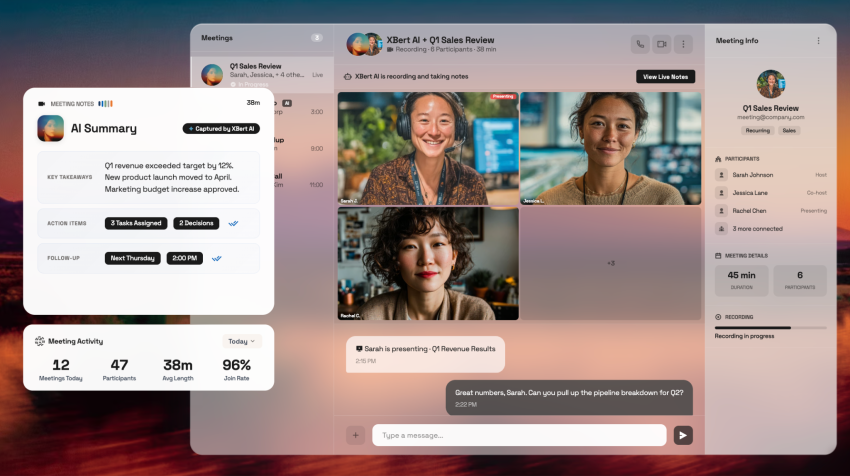
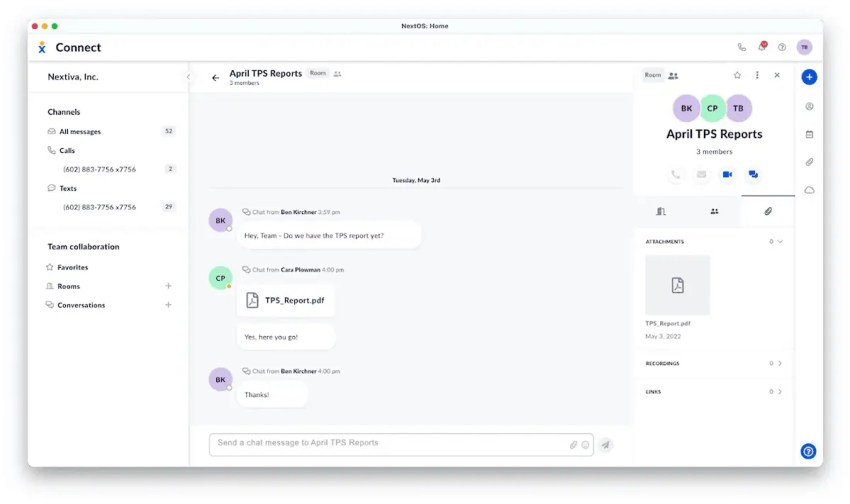
Nextiva brings business calling, team chat, video meetings, and SMS into one platform with mobile access. It ranks first under this guide’s criteria because teams paying separately for phone service and collaboration may be able to consolidate those subscriptions.
Confirm that the selected plan includes the calling, messaging, and administrative capabilities your team needs. Nextiva does not replace your document editor or knowledge base.
Key Nextiva features
- Business calling with call-routing tools
- Team chat and file sharing
- Video meetings and screen sharing
- Business SMS
- Mobile app for calls and messages away from a desk
2. Slack

Slack suits teams that organize work around channels, searchable conversations, and integrations with other applications. It’s a strong choice for engineering and product teams whose daily coordination depends on those workflows. Huddles support internal audio and video conversations, but external business calling requires another provider.
Check message history and administrative requirements before relying on the free plan.
Key Slack features:
- Channels and threaded conversations
- Searchable messages and shared files, subject to plan limits
- Huddles for audio, video, and screen sharing
- Integrations with project management and other workplace apps
- Workflow automation on eligible paid plans
3. Microsoft Teams
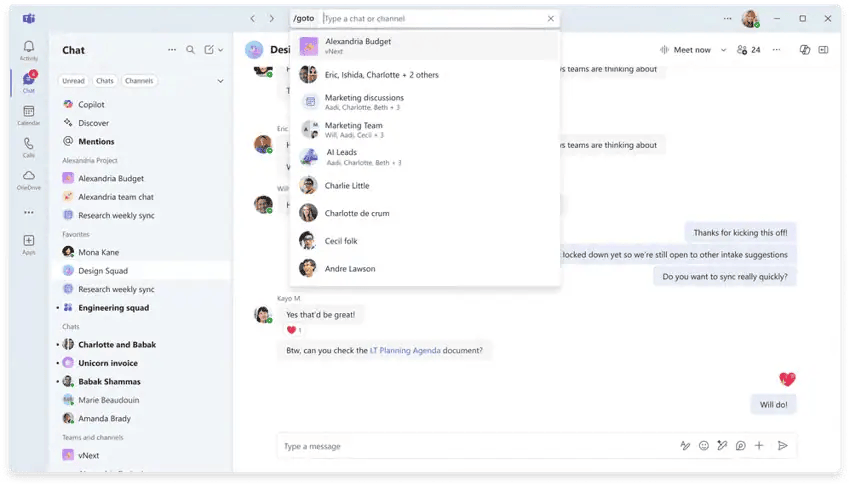
Microsoft Teams deserves the first look when your Microsoft 365 subscription already includes it. Teams brings internal chat, meetings, and file collaboration into the Microsoft environment, making it a practical choice for organizations already managing users and documents there.
Confirm which Microsoft 365 version you own, since subscriptions are available with and without Teams. External business calling requires the appropriate phone licensing and connectivity.
Key Microsoft Teams features:
- Team channels and individual or group chats
- Video meetings and screen sharing
- File sharing and collaboration with Microsoft 365 services
- Meeting recordings and transcripts
- External business calling with appropriate Teams Phone licensing and connectivity
4. Zoom Workplace
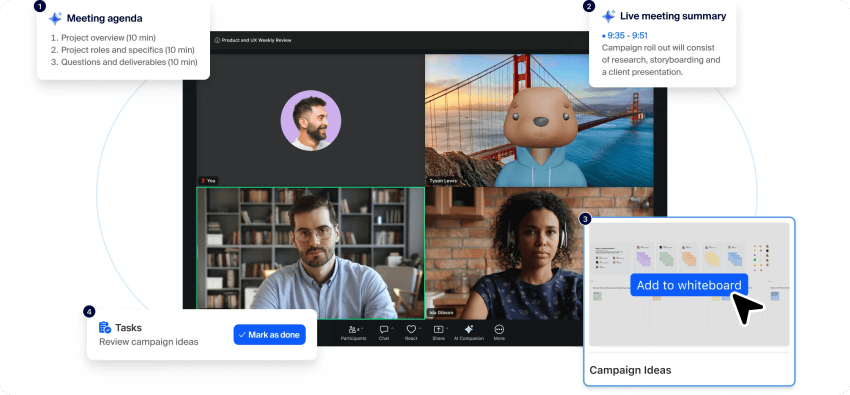
Zoom Workplace suits teams that spend much of their day in meetings and want messaging alongside them. It can consolidate meeting-related collaboration when employees also adopt Team Chat for everyday conversations.
Check meeting duration, participant limits, and recording requirements against the selected plan. Zoom Phone requires separate licensing or a bundle that includes it.
Key Zoom Workplace features:
- Video meetings and screen sharing
- Team Chat for ongoing conversations
- Calendar integration for meeting coordination
- Whiteboards for visual collaboration
- Meeting recording options that vary by plan
- Business calling through separately licensed or bundled Zoom Phone
5. Google Workspace
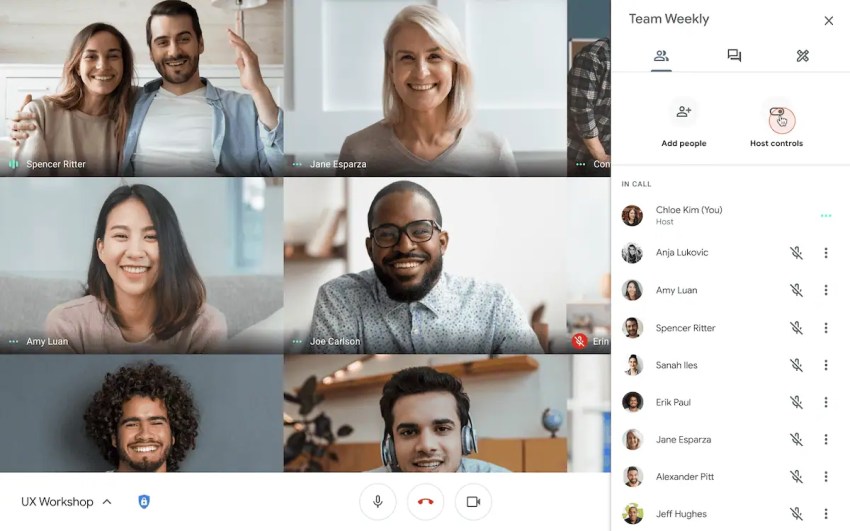
Google Workspace is a practical starting point for teams already working in Gmail, Drive, and Docs. Meet and Chat can cover everyday meetings and messaging within the same subscription, reducing the need for another collaboration platform.
Test your actual discussion, search, and integration workflows before adding a separate chat tool. Business phone service requires a separate purchase.
Key Google Workspace features:
- Gmail and shared calendars
- Google Chat for direct messages and team spaces
- Google Meet for video meetings
- Shared files and real-time collaboration in Docs, Sheets, and Slides
- Pooled cloud storage with allowances based on the subscription
6. Webex
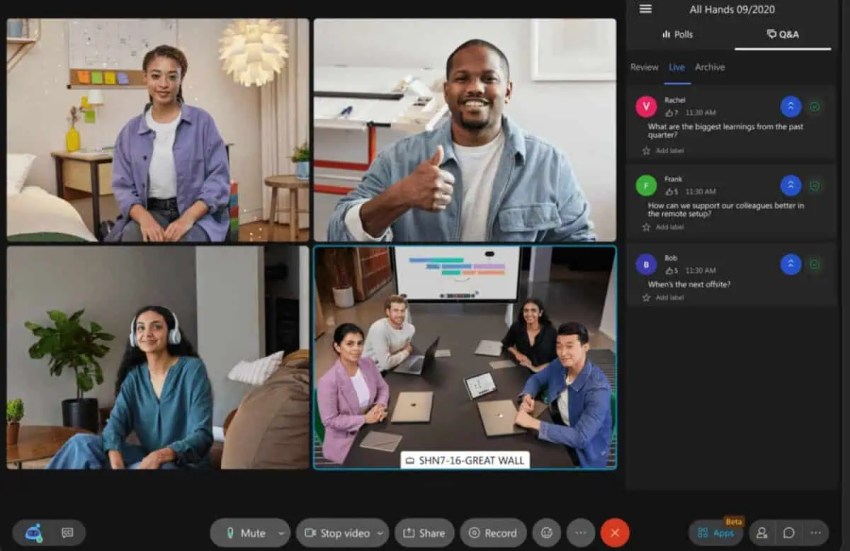
Webex is worth considering when your organization already uses Cisco devices or needs an IT-managed meeting and calling environment. Its meeting and calling plans serve different requirements, so distinguish Webex Meet from Webex Suite Meet + Call when comparing prices.
Confirm participant limits, administration requirements, and any sector-specific controls against the exact offering. The right comparison is the configured package your team needs, not the lowest meeting-plan price.
Key Webex features:
- Video meetings and screen sharing
- Team messaging and file sharing
- Whiteboards for collaborative sessions
- Meeting recording options that vary by plan
- Business telephony through Webex Calling or a package that includes it
7. RingCentral
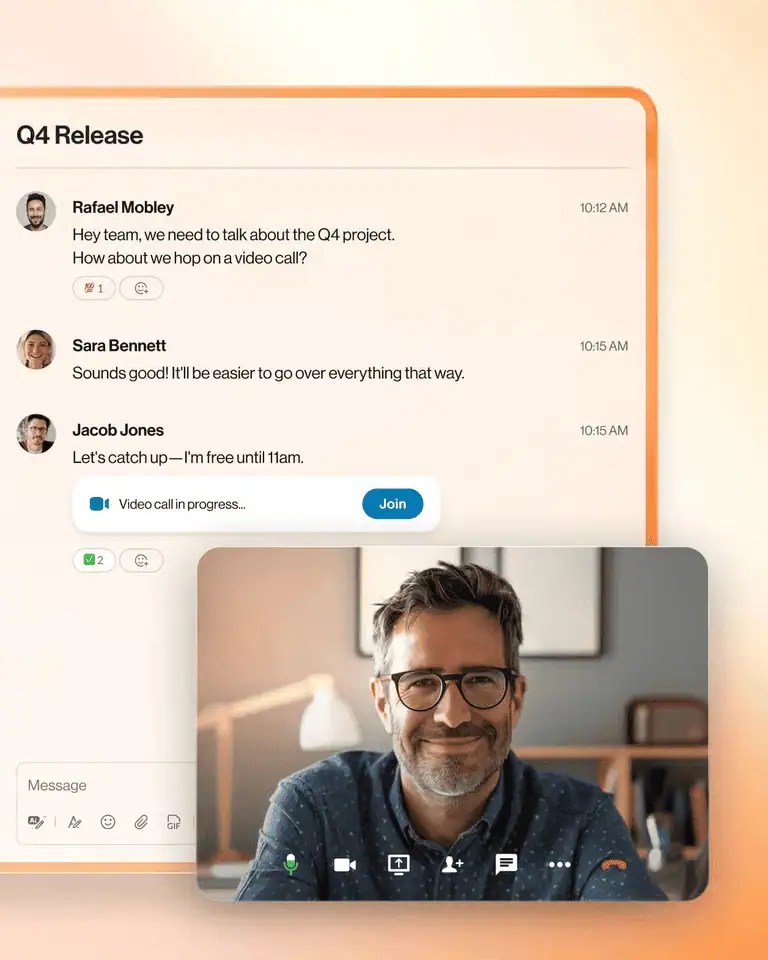
RingCentral combines business calling, messaging, and meetings, making it a direct alternative for teams consolidating separate communication subscriptions. Like Nextiva, it can replace parts of the communication stack while leaving your productivity suite in place.
Organizations managing several sites should compare administrative and reporting capabilities carefully. Some advanced controls and analytics require higher-tier plans.
Key RingCentral features:
- Business calling and call-routing tools
- Team messaging and video meetings
- Business SMS, subject to plan allowances
- Integrations with productivity and CRM applications
- Administration and analytics capabilities that vary by plan
8. Dialpad Connect
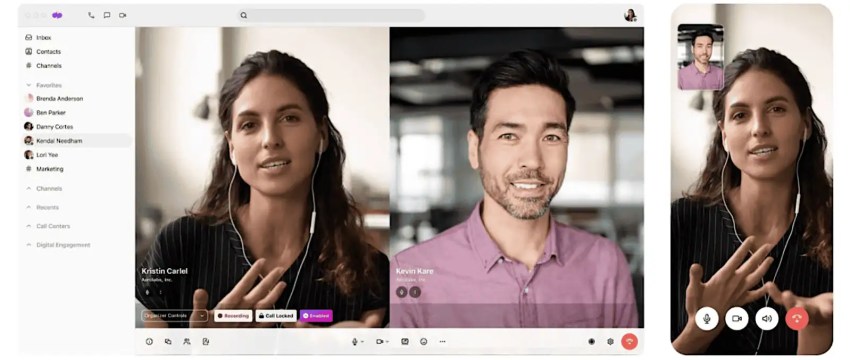
Dialpad Connect suits teams that prioritize business calling with AI transcription and call summaries. Its phone, messaging, and meeting capabilities can reduce the number of applications employees use around calls. Check the exact product and plan needed for advanced coaching, CRM integrations, and management features.
Do not assume features advertised for Dialpad’s sales or support products are included in the entry-level Connect subscription.
Key Dialpad Connect features:
- Business calling, messaging, and meetings
- Real-time call transcription
- AI-generated call summaries
- Access from desktop and mobile devices
- CRM integrations on eligible plans
9. Connecteam
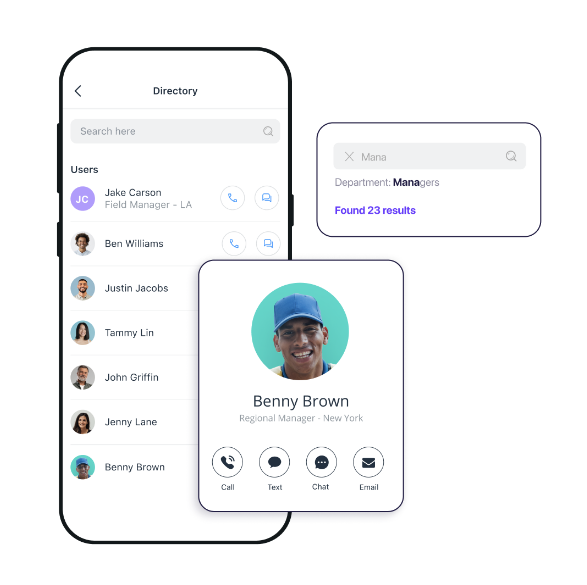
Connecteam is a strong option for frontline teams that coordinate work through a mobile employee app. Its communications, operations, and HR tools address needs such as company updates, shift coordination, training, and task management. The Small Business Plan supports up to 10 users, while paid hubs have separate pricing.
It’s a better fit for teams coordinating shifts and field work than for teams primarily seeking document-based collaboration.
Key Connecteam features:
- Mobile team chat and company updates
- Employee directory and shared knowledge resources
- Surveys and feedback tools
- Shift scheduling, time tracking, and task management through the Operations Hub
- Training and onboarding tools through the HR & Skills Hub
Paid hub subscriptions are priced separately, so compare the combination your team needs.
10. Twist

Twist organizes asynchronous communication around threaded discussions. It supports virtual team communication by giving distributed colleagues written context without expecting immediate replies across time zones.
Check history access when choosing between the free and paid plans. Pair it with a clearly defined escalation route for genuinely urgent issues.
Key Twist features:
- Topic-based threads for asynchronous discussions
- Searchable conversation history
- File sharing within conversations
- Integrations with other workplace tools
- Full conversation history and unlimited integrations on the Unlimited plan

The 4 Communication Categories (and Which One You Actually Need)
These four categories describe different communication needs. A platform can span several categories, so use them to identify your requirements rather than assigning every product to a single box.
Start with two questions: Which conversations need an immediate response, and how will employees access them during their working day? A desk-based project team and a shift-based field team may need very different combinations.
| Category | What it is for | Choose it when | On the list |
|---|---|---|---|
| Real-time chat | Channel and direct messaging, quick coordination | Work is interdependent and moves hourly | Slack, Teams, Google Workspace |
| Voice and video | Calls, meetings, external conversations | Live conversations, including external calls, are central to coordination | Nextiva, Zoom Workplace, RingCentral, Webex, Dialpad Connect |
| Asynchronous discussion & documents | Threaded decisions, written updates, searchable context | The team spans time zones or does deep work | Twist, Google Workspace |
| Frontline mobile | Shift coordination, mobile-first, no company email | Most of the team doesn’t have a desk | Connecteam, Nextiva |
Start with the categories your team uses most. One platform may cover several needs, so you don’t necessarily need a separate subscription for each.
- A 20-person marketing agency may need real-time chat and voice.
- A restaurant group may need frontline mobile tools and business calling.
- A fully distributed software team may need asynchronous documents and real-time chat.
Overlap between tools can waste budget. If your team uses Slack for chat, Zoom for meetings, and a separate phone provider, check which functions a unified platform could replace. Keep specialized tools, such as shift scheduling, when they serve a distinct need.
Integration deserves its own check. The MuleSoft 2026 Connectivity Benchmark, based on a survey of 1,050 IT leaders, found that organizations managed an average of 957 applications, with only 27% connected. Those figures cover the broader enterprise application estate, not communication tools alone.
Before adding another platform, check how it connects to your identity provider, employee directory, files, and existing workflows. A shared login can simplify access, but it does not guarantee that messages, permissions, or records move between systems.
Want a broader view of the stack beyond communication? See our full guide to remote work tools.
How to Evaluate, and What It Really Costs
Start with what you already own. If your Microsoft 365 subscription includes Teams, start by testing it against your internal chat and meeting requirements. For organizations using Google Workspace, consider Meet and Chat with the same level of scrutiny. Add another platform when it fills a demonstrated gap.
Compare the complete stack
The useful comparison is the cost of the tools you will retain after the change, including the features and licenses each employee actually needs.
Consider this illustrative monthly budget for a 20-person team:
- Chat: 20 seats at an assumed $8 each = $160
- Video meetings: Five paid host licenses at an assumed $15 each = $75
- Business phone: 20 seats at an assumed $20 each = $400
- Combined cost: $635 per month
A unified platform priced at an assumed $25 per user would cost $500 per month for the same 20 employees. That would save $135 per month, or $1,620 per year, if it genuinely replaced all three subscriptions.
These are assumed prices, not vendor quotes. The comparison excludes taxes, usage charges, migration, and any productivity suite retained in both scenarios. If chat and meetings are already included in a subscription you will keep, their incremental cost may be zero, changing the result.
Phone may also need the appropriate licensing and a way to connect calls to external phone numbers. Depending on the package, that connectivity may be bundled or supplied separately. Ask for the complete configuration rather than adding a generic phone price to the quote.
Check access, administration, and ongoing costs
| Question | Why it matters |
|---|---|
| Which existing subscriptions can we retire? | Savings depend on removing costs, not simply adding a platform with overlapping features. |
| Which employees need paid seats, phone numbers, or meeting-host licenses? | Different roles may need different licenses. |
| How does it connect to our identity provider and directory? | Check SSO, provisioning, group permissions, and how access is removed. |
| Can employees join and recover access without a company email address? | Frontline access needs to work beyond the desktop onboarding flow. |
| Can staff complete their everyday tasks on the mobile app? | Test calls, messages, files, notifications, and account recovery on actual devices. |
| What happens to messages and files when someone leaves? | Offboarding must remove access while preserving records according to company policy. |
| Which plans include retention, export, and eDiscovery controls? | Searchable history and record retrieval may depend on the plan. |
| What security and contractual support documentation is available? | Review the vendor’s SOC 2 report and any sector-specific requirements with the appropriate internal team. |
| What are the calling, messaging, storage, and add-on charges? | The seat price may cover only part of the operating cost. |
| What changes at renewal? | Record promotional periods, renewal rates, and cancellation terms before committing. |
Budget for the move
Ask how message history, files, channels, and permissions transfer to the new platform. Confirm what remains searchable, what must be archived separately, and who owns the migration work. If phone service is moving, include number porting, call-routing setup, and testing.
Pilot the platform with both desk-based and frontline employees. Budget for training and any period when old and new subscriptions overlap. Set a retirement date for the old tools after the pilot succeeds; otherwise, a consolidation project can leave you paying for more software.
Nothing Bundt Cakes illustrates the challenge across distributed locations. Its headquarters used VoIP, while its franchise locations used traditional telephone service. The company selected Nextiva as its preferred phone vendor to support a more consistent setup across headquarters and participating bakeries. Its experience highlights why rollout support and repeatable configuration matter alongside subscription price.
Notification Governance and the Cost of Being Always On
Buying a communication platform also means deciding how it can interrupt people. Without shared rules, employees have to guess whether a message needs an immediate response or can wait until their next check-in.
Treat notification settings as part of implementation. Review default channel subscriptions, mention permissions, mobile alerts, quiet hours, and escalation routes. Test the setup with employees in different roles, including people working shifts or across time zones.
The goal is to make urgent work visible while giving everyone permission to leave routine messages until an agreed time.
Define which channels carry which urgency
Urgency should come from the issue and its deadline, not simply from who sent the message. A direct message from a manager does not automatically require an immediate reply.
Give your business communication channels clear purposes and response expectations:
- Routine updates and questions: Use a relevant channel or thread. State when a response is needed.
- Announcements: Publish in a designated space that employees check during their working day or shift.
- Urgent blockers: Contact the designated person through the agreed escalation route. Include the impact, action needed, and deadline.
- Broad mentions: Reserve @here and @channel for issues that genuinely require the wider group’s attention.
Use threads to keep related discussions together, then check how notifications behave in your chosen platform. Alerts depend on settings, subscriptions, and mentions; a thread does not automatically guarantee fewer interruptions.
Protect time for deep work
If focus time is something your team claims to value, make sure employees can protect it with structure. A personal “do not disturb” setting helps, but it doesn’t stop someone from scheduling a meeting over a focus block.
Make deep work a calendar object rather than a personal preference. Block time on shared calendars, make sure the team knows those blocks are protected, and hold managers accountable for respecting them. If focus time disappears the moment something feels urgent, it was never real.
When to choose asynchronous over real-time
The default should be async unless real-time is really necessary. A few guidelines:
- Updates that more than three people need should be written, not spoken. A meeting where people read updates aloud is a meeting that should have been a thread.
- Decisions that need to be searchable in six months belong in a written channel. Calls are excellent for alignment and nuance, but the decision and its rationale need to land somewhere searchable afterward.
- Anything crossing a time-zone boundary deserves async by default. Scheduling a synchronous call for something that could have been a Loom video forces someone to work outside their hours for no reason.
Write the Communication Charter
A charter turns your approach to business communication into rules employees can follow. Every new hire should read it in their first week. Copy the template below, fill in the named spaces and owners, and test it with your team.
Where we communicate
Routine questions and project updates go in the relevant shared channel. Use threads for follow-up discussion. Direct messages are for private or sensitive matters; record any resulting team decision in the appropriate shared space.
When we respond
Routine channel messages receive a response by the end of the recipient’s next working day. Direct messages receive a response within four working hours when the recipient is on duty. These are starting points to agree on as a team, not expectations outside scheduled hours.
How we escalate urgent issues
An urgent issue blocks current work or needs action before the routine response window. Contact [primary role/name] through [phone number or designated channel]. If there is no acknowledgment within [agreed interval], contact [backup role/name]. After-hours coverage applies only to the designated on-call role.
When we meet
Schedule a meeting when you need to resolve ambiguity, handle a sensitive issue, or work through a complex decision. Include the purpose, required participants, and intended outcome. Share routine status updates in writing.
Where decisions live
Record final decisions in [shared document, wiki, or decisions channel], including the date, owner, rationale, and next action. Link the record from the original discussion.
How we protect focus time
Honor calendar focus blocks and quiet hours. Schedule routine messages for the recipient’s working hours where possible. Only the agreed urgent escalation route overrides protected focus time.
Who maintains the charter
[Owner] reviews these rules with the team every quarter and after major workflow changes. New hires receive the charter during their first week, including examples of routine and urgent messages.
Nextiva Brings Voice, Video, and Chat Into One Workspace
The best consolidation project ends with fewer subscriptions and clear rules for the tools that remain. Start by identifying what employees actually use, what your existing suite already covers, and which gaps still require another platform.
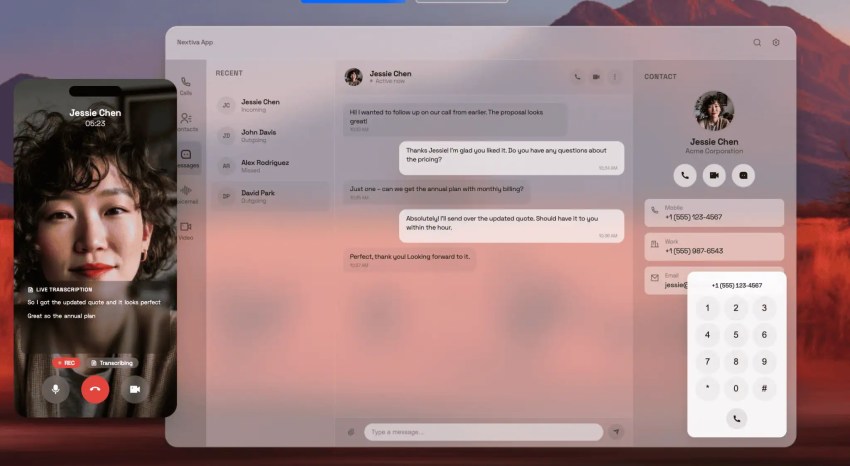
Nextiva brings business calling, team chat, video meetings, and SMS together, with mobile access and proven network uptime. For teams buying phone service and collaboration separately, it is worth evaluating as a way to combine those functions.
If Microsoft 365 or Google Workspace already covers your internal collaboration needs, be sure to include that value in your comparison. Ask Nextiva to show which subscriptions the plan would replace and which you would retain.
Explore Nextiva’s business phone system and request a quote based on your team’s calling, messaging, meeting, and mobile requirements.
The small business VoIP phone system for modern work.
Bring business phone calls, video meetings, messaging, AI, and your team together on one platform that remembers the conversation and helps your business act on what happens next. Easy to set up. Built for your budget. Trusted by millions.
Frequently Asked Questions
Team communication tools are software platforms that let employees share messages, make calls, hold video meetings, and collaborate without relying on personal phones or consumer apps.
They range from chat-focused tools like Slack to unified communications platforms like Nextiva that bundle voice, video, messaging, and SMS into a single application. The category also includes async-first tools like Twist and frontline-focused platforms like Connecteam.
Nextiva is worth considering when a small business needs phone service alongside team messaging and meetings. Teams with a Microsoft 365 subscription that includes Teams should evaluate it first, while Google Workspace customers should start with Chat and Meet.
The best fit depends on which functions you need, how employees access them, and which subscriptions the new platform can replace.
Start with your existing subscription and workflows. If your Microsoft 365 plan includes Teams, test whether it meets your chat, meeting, file-sharing, and administrative requirements.
Consider Slack when its channel structure and integrations better match how your team works. Test the specific integrations and search capabilities you need, then include migration and training in the comparison.
Slack’s Huddles support audio and video conversations within the application. Calling external telephone numbers requires another provider or an integration.
Teams supports calls between Teams users, but external business calling requires the appropriate Teams Phone licensing and telephone-network connectivity. Those components may be bundled or purchased separately, depending on your agreement.
Compare the complete calling setup with a platform that includes business phone service alongside collaboration.
Team chat (Slack, Teams, and Google Chat) handles text-based messaging, channels, and threads. Unified communications bundles chat, voice, video, and often SMS into a single platform so employees can switch between modes without switching apps.
The distinction matters for total cost, as teams that need calling often pay for a chat tool and a separate VoIP provider, while a unified platform like Nextiva combines both.